Creating and managing channels
How staff create public and private channels in Gym TeamHub, pick members, and use auto-assignment rules by level, role, or everyone.
Staff can create as many channels as the program needs — a team-wide channel, one per level, a staff-only room, a meet-travel channel for the season.
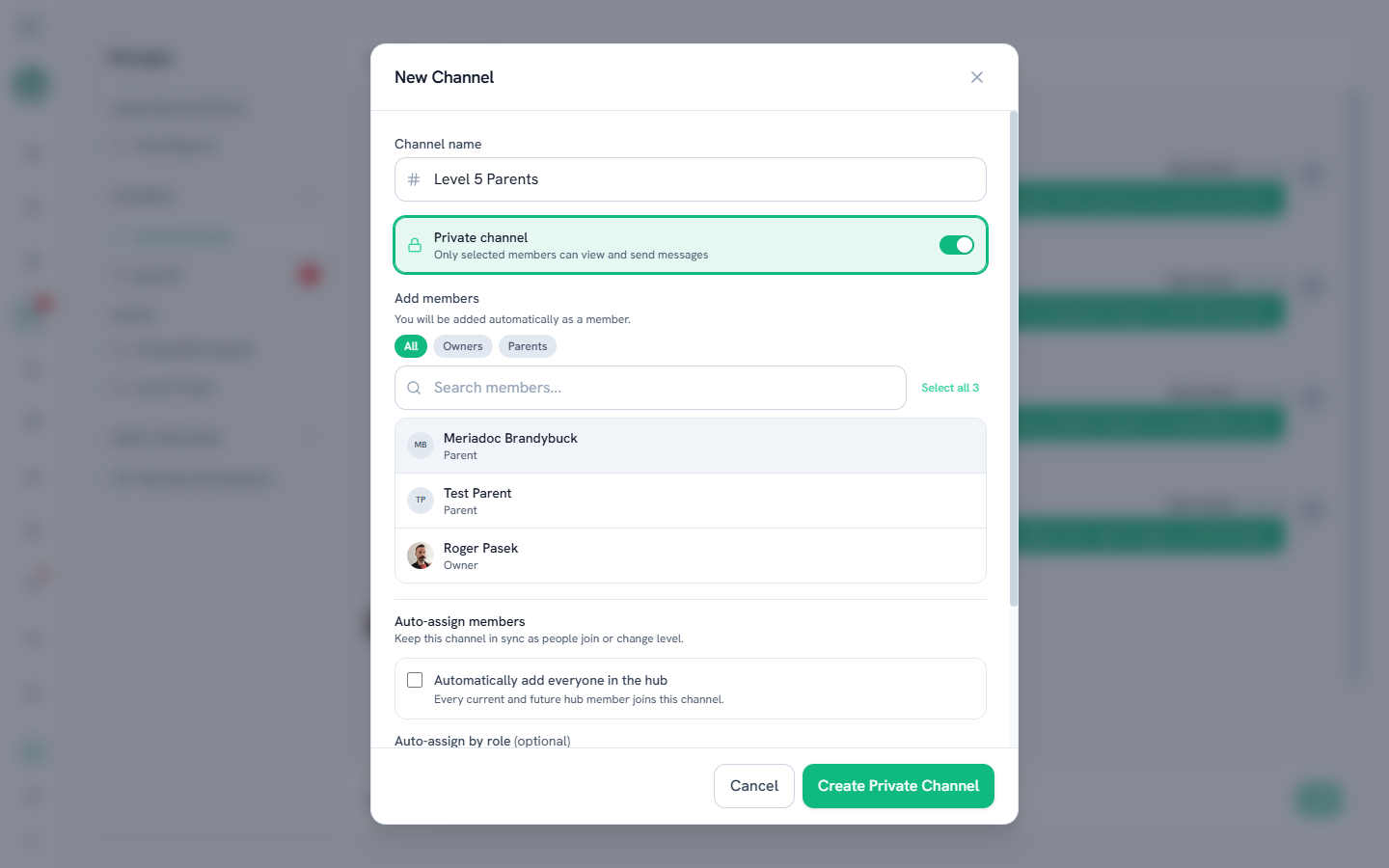
Creating a channel
- Open Messages and select Create Channel.
- Name the channel and choose public or private.
- Public — every hub member can see and read it.
- Private — only members you add can see it.
- For a private channel, pick the starting members. The picker is search-first: type a name, select, and repeat — selected members collect as chips so you can review before creating.
Auto-assignment (private channels)
Instead of maintaining membership by hand, give a private channel auto-assign rules, and new matches are added automatically as your roster changes:
- Everyone — every hub member is added automatically.
- By role — e.g. all coaches, or all parents.
- By level — adds the parents of gymnasts at the levels you pick. Check several to cover a range: a meet channel for Levels 6, 7 and 8 is three taps.
Picking levels adds every matching parent immediately, not just future ones — so a new channel comes out fully populated. After that, new matches are added automatically: new members who match the rules are added the moment they join the hub, and a gymnast moving into one of those levels adds their parent automatically.
Coaches & staff
Level rules match a parent by email — the guardian email on the gymnast's profile has to match the email that parent signs in with. If a family is missing from a level channel, that mismatch is almost always why, and nothing flags it. Worth a quick count against your roster for that level after creating a channel you're relying on; you can always add the stragglers by hand.
Level rules add parents only.
Note
Auto-assignment only ever adds members — removal stays manual, so someone you added by hand is never silently dropped. Remove members from the Members list in the channel header. Removals stick: the rules won't quietly re-add someone you removed — and the same goes for members who choose to leave. Adding someone back by hand always works and clears that memory.
Managing an existing channel
Open the channel and use the header controls:
- Rename — change the channel's name. Any channel can be renamed except a direct message, including a group's channel and the hub-wide one; a group's channel stays linked to its group, and only the name changes. Names keep their capitals and spaces, up to 50 characters. On the phone, tap the channel name at the top, then Rename.
- Members — see who's in the channel, add more people, or remove someone. A private channel's auto-assign rules are set here too.
On the web, hover a channel in the channel list for Sleep and Delete. Owners and directors can delete any channel, and a coach can delete a group's channel; owners and directors can also sleep a channel that isn't a group's.
Owners & directors
Only owners, directors and coaches can create public channels. Parents can create channels too, but private ones only: they pick the members, and don't get auto-assign rules. Admins also create private channels only, with auto-assign rules.
Whoever can delete a channel can rename it. Owners and directors can rename any channel, coaches can rename a group's channel, and anyone can rename a private channel they created.
Last updated September 28, 2026
New to Gym TeamHub?
One organized hub for your whole gymnastics program — built by a coach.
Start Your Gym