Calendar overview
The Gym TeamHub calendar — month, week, and agenda views, color-coded event types, filtering, RSVPs, and the schedule in your own calendar app.
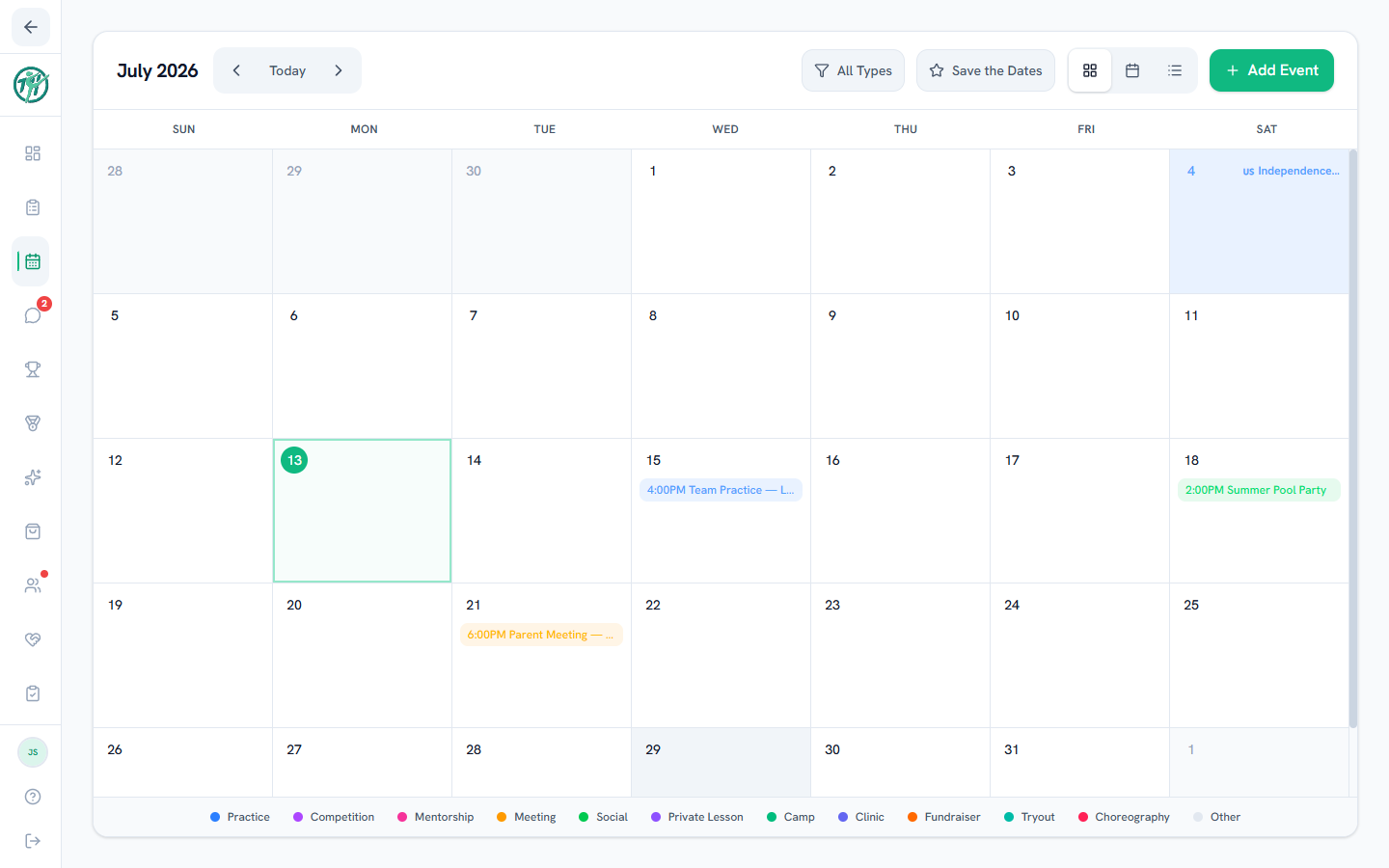
The Calendar tab holds everything scheduled — practices, meets, camps, socials, meetings — color-coded by type so a glance tells you what kind of week it is.
Views and filtering
- Switch between month, week, and agenda views.
- Filter by event type when you only want to see one kind of thing — just meets, just practices.
- Event types: practice, meet, mentorship, meeting, social, private lesson, camp, clinic, fundraiser, tryout, choreography, and other — each with its own color.
Opening an event
Tap any event to see its details — time, location, and notes. Tap the location to open it in Google Maps. If the staff enabled RSVPs on the event, you answer Going / Maybe / Can't Go right in the popup.
Parents
When your gymnast is signed up for a meet or camp, or on its roster, the calendar says so: On roster or Signed up in the agenda list, in a day's list of events, and in the event popup. The calendar's day squares and the week view are too small to carry it, so open the event. With more than one gymnast, each line starts with their name.
Some events are staff-only, like coach meetings and time off. Those never appear on your calendar, so everything you see is meant for you. Your own approved lesson, choreography and meeting bookings do show on your calendar, and only your family sees them; tap one to open it, the same as in My Bookings. Your hub can also show team birthdays on the calendar (a hub-wide setting the staff controls); your own privacy settings decide whether your gymnast's birthday is among them. Coaches choose the same way for their own birthday, so a birthday only ever appears because the person it belongs to said yes — and only ever as a month and day, never a year.
Coaches & staff
Creating, editing, and deleting events is covered in Creating events. The season's headline dates get their own view — see Save the Dates.
In your own calendar app
Subscribe, at the top of the Calendar, puts this hub's schedule in the calendar app you already use. Get my link makes a link that is yours alone. What you do next depends on your calendar app. On a phone the popup opens on the one that phone most likely uses, and the others are a tap below it.
Apple Calendar
Add to Apple Calendar takes one tap on an iPhone, iPad or Mac.
Google Calendar
Adding a calendar to Google Calendar takes a computer, not a phone, so a phone shows these steps and no button.
- On a computer, go to gymteamhub.com and open Calendar.
- Click Subscribe, then Add to Google Calendar.
- On your phone, open Google Calendar's settings and turn on your gym's calendar. On an Android phone that is the menu, then Settings, then your gym's calendar. It may not show on your phone until you do.
Google Calendar shows every time in the time zone your phone is in. At a meet in another time zone, check the time in Gym TeamHub.
Another calendar app
Copy link, then paste the link where that app asks for a calendar's address.
Whether it's connected
The top of the popup says where your link stands.
- Connected means a calendar app has read your link in the last 8 days. The popup shows when it last did.
- Not in a calendar app yet means nothing has read it.
- When no calendar app has read it for longer than 8 days, the popup says so and names the day.
After you add the calendar, the line changes to Connected once your calendar app has read the link. The time shows the next time you open the popup.
Once it's connected, the popup opens on what your calendar includes and how to turn the link off. Add it to another calendar app brings the buttons back. On a phone, Not showing on this phone? says how to turn the calendar on in Google Calendar there.
Your link
The link is private to you. Anyone who has it can see this calendar, so keep it to yourself. Anyone else who needs it gets their own link from their own account. If someone else has yours, Turn off this link stops it working, and you can get a new one any time.
Your calendar app checks for changes on its own schedule, and Google Calendar can take up to a day. For a last-minute change, check Gym TeamHub.
What your subscribed calendar includes says in one line what your calendar app gets. Change opens the list: uncheck a type of event to leave it out. Your family's own approved bookings are included, the same as on the calendar here.
A one-time copy
On the website, two buttons save a file you add to your calendar app yourself. It doesn't update after you add it.
- Open One-time copy, at the bottom of the same popup, for a Download button. It names the month you're looking at and saves every event in it, whatever your subscribed calendar includes.
- Add to Calendar, in an event's popup, saves that one event.
Coaches & staff
In your own calendar app, a tryout reads only "Tryout". A booking names the gymnast only for the coach it's with; for other staff it names the coach. Time off shows without its notes.
Last updated October 11, 2026
New to Gym TeamHub?
One organized hub for your whole gymnastics program — built by a coach.
Start Your Gym