Creating announcements
How staff create Gym TeamHub announcements — targeting by role, level, or specific members, links, expiration, and requiring acknowledgement.
Staff publish announcements from the Create announcement button on the Dashboard. An announcement lands on the dashboards of everyone it targets the moment you publish it.
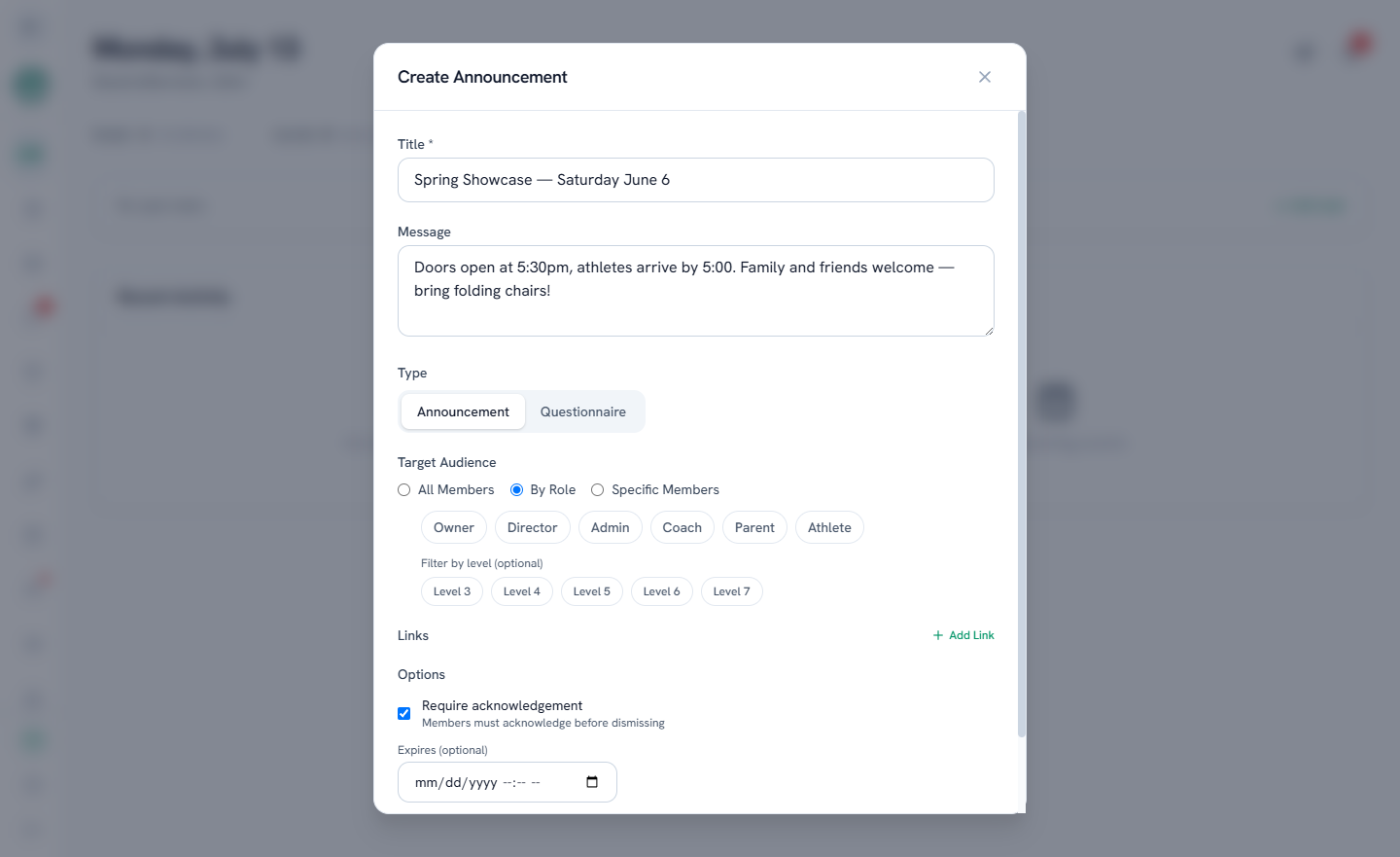
Composing
- Give it a title and write the message.
- Optionally attach links (registration forms, meet info pages — anything with a URL).
- Optionally set an expiration date and time — after it passes, the announcement stops being shown. Good hygiene for time-boxed news like "gym closed Friday".
Targeting
Choose who receives it:
- All members — the whole hub.
- By role — e.g. parents only, or coaches only. When you target roles, you can additionally narrow by level (say, parents of Level 5s).
- Specific members — hand-pick the recipients.
Requiring acknowledgement
Flip on require acknowledgement for anything you need confirmation on — the announcement opens as a blocking overlay for each recipient until they tap through, and you can track who has responded.
After you send
While an announcement is active, the Active Announcements card on your Dashboard tracks who has responded, lists the recipients, and exports the responses as a CSV.
Owners & directors
Hub Settings → Announcements lists every announcement you've sent, with completion tracking and full results — and lets you end an announcement early so it stops displaying for members. See Responses and analytics.
Tip
Announcement or message? If it needs to stick until seen (and be tracked), use an announcement. If it's conversational, a channel message is lighter.
Last updated July 13, 2026
New to Gym TeamHub?
One organized hub for your whole gymnastics program — built by a coach.
Start Your Gym