Team channels
How channels work in Gym TeamHub Messages — group conversations for the whole team, a level, or any group your gym sets up.
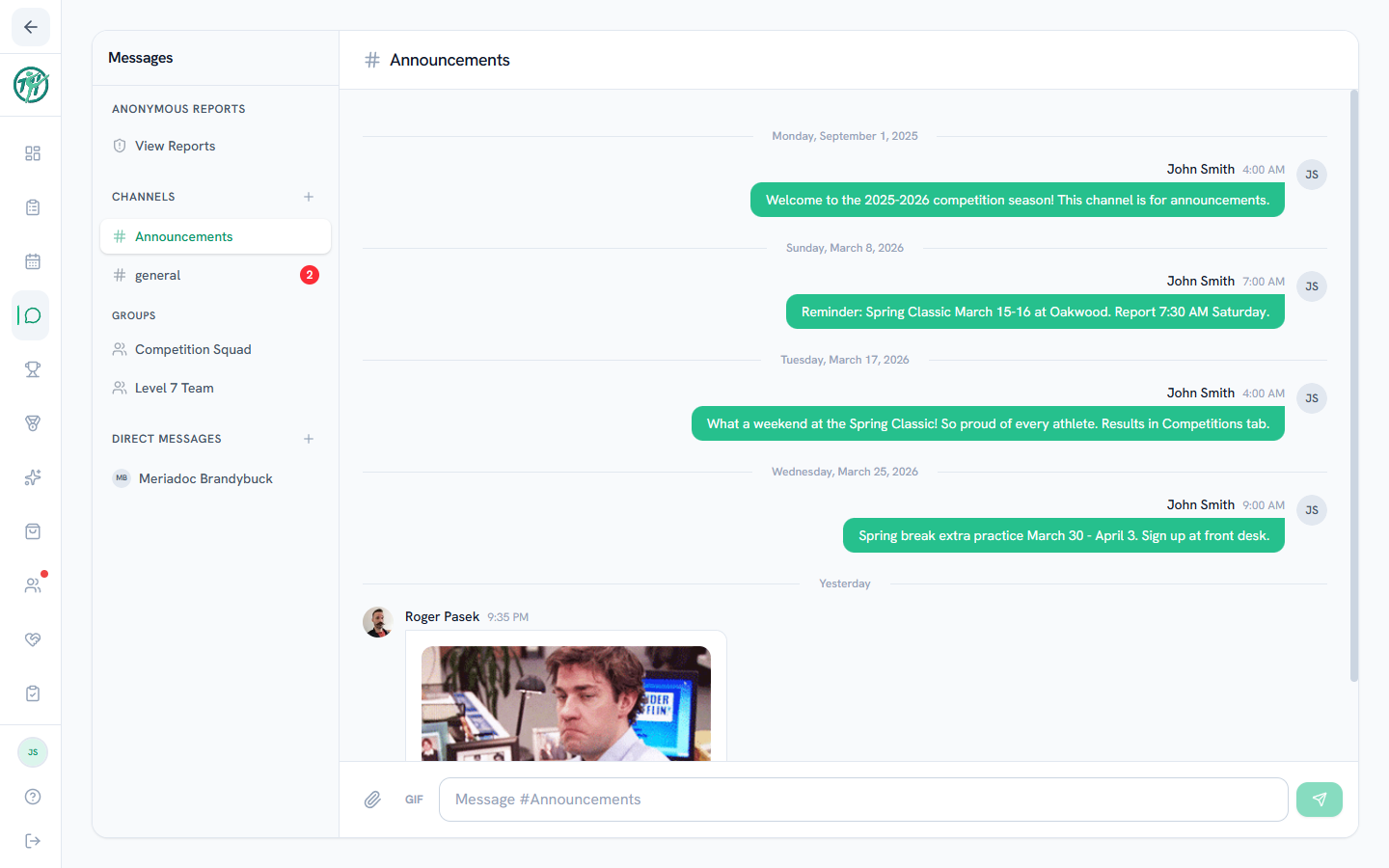
Channels are group conversations that live in the Messages tab. Your gym might have a team-wide channel, one per level, or channels for things like meet travel — whatever the staff sets up. Everyone in a channel sees the same conversation.
Finding your channels
- Open Messages from the sidebar (or the tab bar in the mobile app).
- Channels are listed in the left panel, above your direct messages.
- Select a channel to read it. A badge next to the channel name shows how many messages you haven't read yet — opening the channel marks it read.
Public and private channels
- Public channels are visible to every member of the hub.
- Private channels only appear for members the staff has added. If you don't see a channel a teammate mentions, you're likely not in it — ask a coach.
You can see who's in a channel from the Members button in the channel header.
Leaving a channel
Don't need a private channel anymore? You can leave it yourself:
- Web — open the channel and select Leave in the channel header.
- Mobile — tap the channel name to open the member list, then Leave channel.
Leaving is remembered: even if the channel automatically adds people by level or role, you won't be pulled back in. An owner, a director, or the person who created the channel can always add you back by hand.
Note
This applies to private channels. Public channels are visible to the whole hub, group chats follow their group's membership, and whoever created a channel stays in it.
Sleeping channels
A channel that has gone quiet — last season's meet channel, say — can sleep instead of being deleted. A sleeping channel disappears from everyone's list and can't be posted to, but every message in it is kept. Waking it puts it back exactly as it was.
If a channel you used to see has vanished, this is the likely reason. Ask a coach to wake it.
Coaches & staff
Hover a channel in the list and use the moon icon to sleep it. Sleeping channels collect in a Sleeping section at the bottom of the panel, visible to owners and directors, with a Wake button.
A group's channel sleeps and wakes with the group itself — you'll see it listed as via group, and you wake it by waking the group on the Groups tab. Prefer sleeping over deleting: deleting a channel is permanent and takes its whole message history with it.
Group chats
If you belong to any Groups, their chats are listed in the Messages panel too, under a Groups heading — same messaging tools, membership follows the group.
Coaches & staff
You can create channels and control their membership — including auto-assignment rules that add new matches to a private channel automatically as people join the hub or change level. See Creating and managing channels.
Sending messages
Type in the composer at the bottom and hit send. Photos, GIFs, audio, reactions, and replies all work in channels — see Writing messages for the full toolkit.
Note
New messages in your channels trigger push notifications on the mobile app unless you're already reading that conversation. You can tune notifications per feature in your account's notification preferences.
Last updated September 24, 2026
New to Gym TeamHub?
One organized hub for your whole gymnastics program — built by a coach.
Start Your Gym