Reading rotations
Read your gym's daily rotation grid in Gym TeamHub on the web or the phone app — which apparatus each group is on, when, and with which coaches.
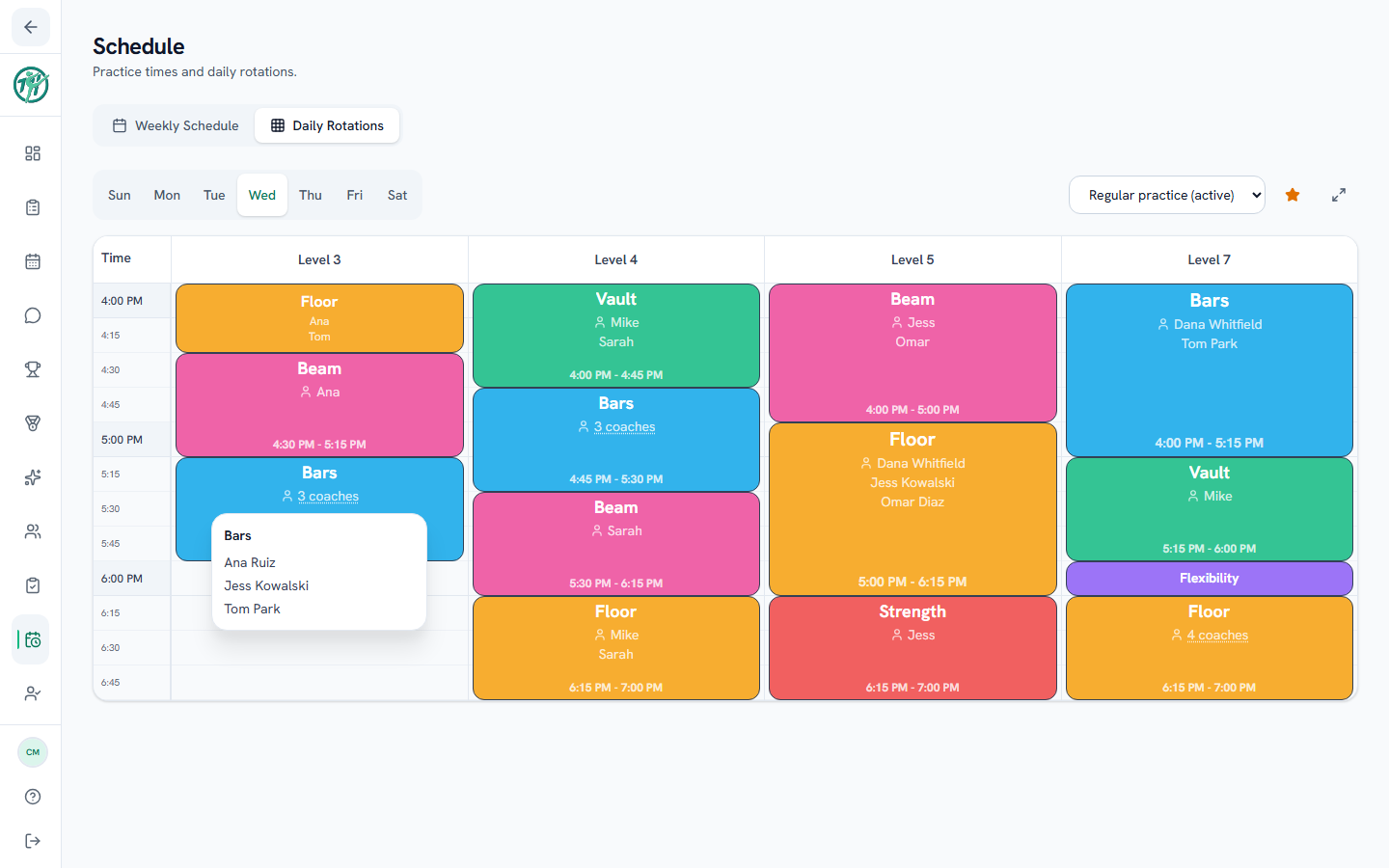
A rotation grid shows what each group does during one practice. Each column is a group, usually a level, and time runs down the side. Each colored block is one apparatus or activity, like Beam or Conditioning, with the coaches running it.
On the web
Open Schedule → Daily Rotations. It opens on today; pick another day from the day tabs.
Some days have more than one rotation schedule, like a regular practice and a meet-week version. The day opens on the one your gym is running, marked with a star and "(active)". The menu at the top right shows the others.
A block shows its activity, its coaches, and on taller blocks its start and end time. Coaches are listed by name when there's room. On a short block you'll see a count like 3 coaches instead: click it to see the full list. On a tablet, tap anywhere on the block. Press Escape or click away to close the list. The shortest blocks, one grid row tall, show only the activity.
The expand icon at the top right shows the grid fullscreen, which works well on a TV at the gym. Arrows flip between days, and Esc exits.
On your phone
In the app, open More → Schedule, then the Rotations tab.
- The row of days across the top picks the day. It starts on today.
- When a day has more than one rotation schedule, a second row appears. With the phone upright, the one your gym is running is marked "(active)".
- Swipe sideways to see more columns. Turning the phone sideways fits more of the grid on screen. On iPhone you can also pinch to zoom.
- Tap a block that shows a count like 3 coaches to see who's coaching. Tap the × or anywhere outside the list to close it. Older versions of the app show one coach per block instead; see the questions below.
- Pull down to refresh.
The app is for reading. Coaches build rotations on the web.
Coaches & staff
Building and changing rotations is covered in Building daily rotations.
Common questions
Why can't I see my gymnast's level?
Two usual reasons. The coaches may not have built a rotation for that day. Or your gym shows families only their own gymnast's schedule, and that level's column is named something else. Ask your coach if it's still missing. On the phone, a day with nothing to show says it has no rotation schedules set up.
Why does a block say "3 coaches" instead of names?
The block is too short to fit every name. Click or tap the count to see who. On a phone with a larger text size, fewer names fit, so you'll see the count more often.
My phone shows only one coach on each block
Your version of the app shows only one coach on each block. Install the next update from the App Store or Google Play when it's offered to see every coach. Until then, the web shows every coach.
Can I change the rotations?
No. Rotations are planned by the coaching staff. To see your gymnast's regular practice days and times, see the weekly practice schedule.
Last updated September 23, 2026
New to Gym TeamHub?
One organized hub for your whole gymnastics program — built by a coach.
Start Your Gym