Weekly practice schedule
Gym TeamHub's weekly practice schedule — practice times by level, A/B schedule groups, and what families see on web and phone.
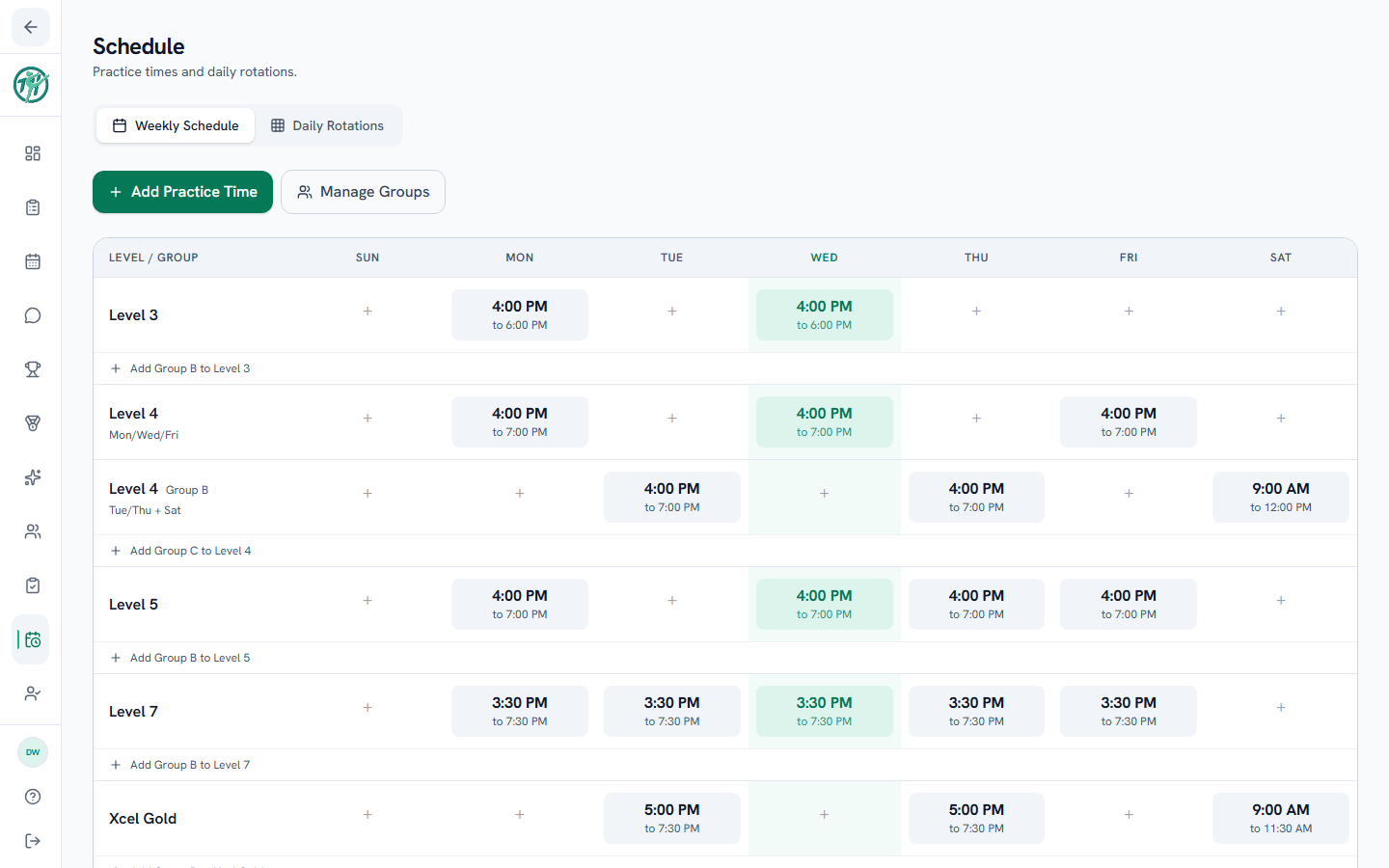
The Weekly Schedule is your gym's recurring practice times: one row per level, one column per day. Attendance runs off it, so it's usually the first thing a gym sets up in the Schedule tab.
Reading the week
Each row is a level, and each day shows that level's start time and end time. Today's column is highlighted. A day with no practice shows a dash, or a + if you're staff who can add one.
When a level trains in two or three separate groups, each group gets its own row. The first group is just the level name; the others say Group B or Group C, with a label underneath if the gym added one.
Adding practice times
- Click Add Practice Time.
- Pick the Level and, if the level is split, its Schedule Group (A, B or C).
- Add a Group Label if it helps, like "Mon/Wed/Fri".
- Pick the days. Select several days to give them all the same time in one go.
- Set the Start Time and End Time, then save.
For a quicker route, click the + in an empty day on a level's row. The form opens with the level and day already filled in.
Each level and group can have one practice per day. To change one, click its time to reopen the form, then Save Changes, or use Delete to remove it.
Schedule groups
Use groups when part of a level trains on different days, for example Group A on Monday and Wednesday and Group B on Tuesday and Thursday.
- Under a level's last row, click Add Group B to that level, and add Group B's practice times.
- Click Manage Groups and put each gymnast in their group. Search by name, or scroll through the levels. Every gymnast starts in Group A.
Groups matter beyond this page. A gymnast appears on a day's attendance only when their level and group practice that day. When you change a gymnast's level on their profile and the new level has no practices for their group, TeamHub puts them in the new level's group. If that level has more than one group, it asks you which one they train with.
Coaches & staff
Owners, directors and coaches add and change practice times. Admins can see the schedule but not edit it.
Parents
Out of the box you see the whole gym's week. Some gyms choose to show families only their own gymnast's schedule. If yours does, you'll see just your gymnast's level and group.
Owners & directors
A new gym starts with Schedule switched off unless you picked it during setup. Turn it on in Settings → Feature Tabs. Attendance needs it on too. To show parents only their own gymnast's practice times, set Schedule to Own in Role permissions.
On your phone
In the app, open More → Schedule. The Hours tab shows the same practice times, one card per level and group, with the week across each card. The app is for reading, so add and change practice times on the web.
Common questions
A gymnast is missing from attendance
Check their level and schedule group. They show up on days when their level and group have a practice. Manage Groups fixes a gymnast who's in the wrong group. See Taking attendance.
Where do the daily apparatus rotations go?
On the Daily Rotations tab, next to the Weekly Schedule. See Building daily rotations.
Last updated September 23, 2026
New to Gym TeamHub?
One organized hub for your whole gymnastics program — built by a coach.
Start Your Gym