The Gym Board
Gym TeamHub's full-screen wall display — the day's training on a TV or tablet, with group check-off for a whole card in one tap.
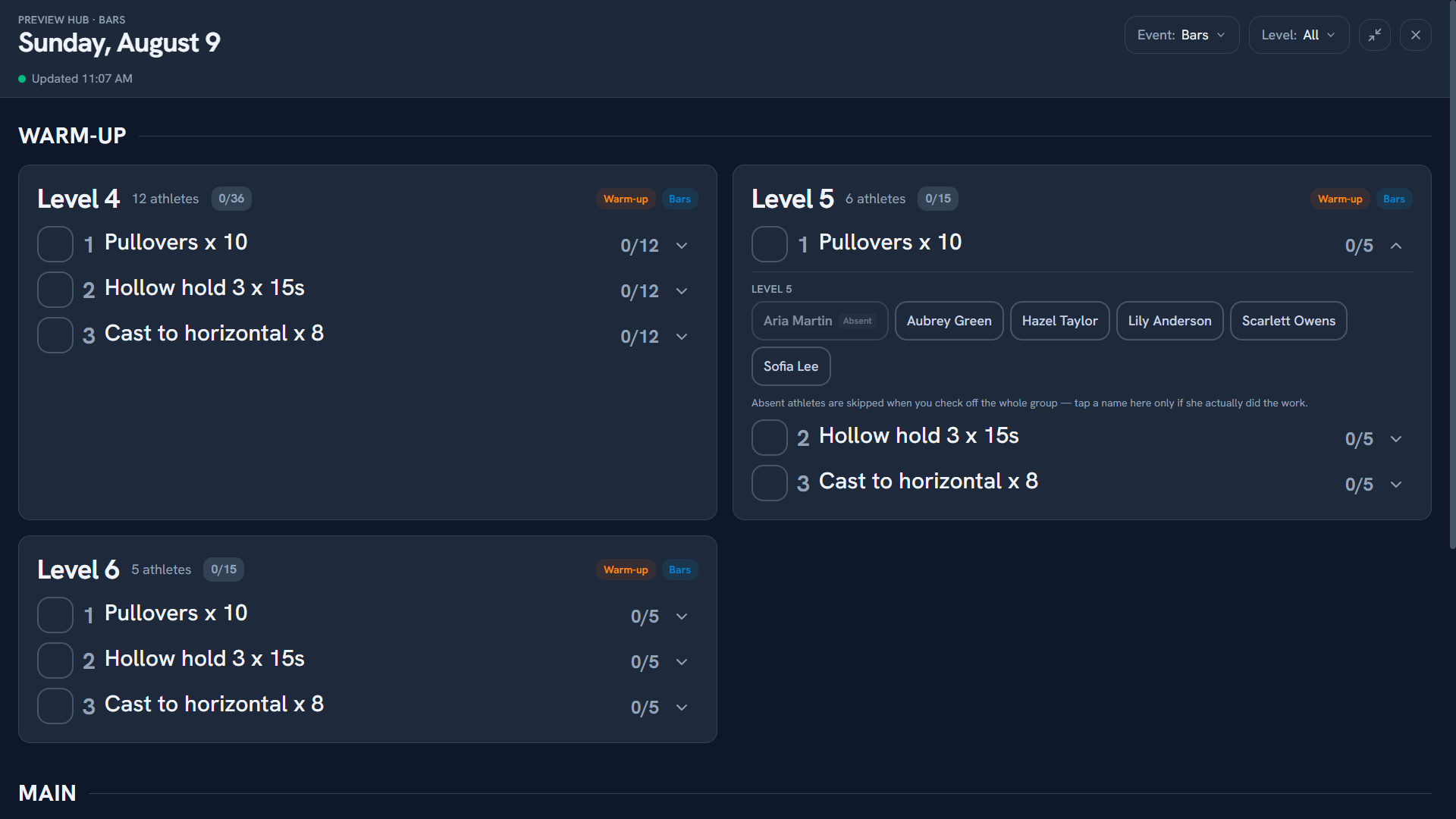
The Gym Board puts the day's training on a screen the whole gym can read — a TV on the wall, or a tablet mounted at a station. Open it from the Gym Board button in Day View's toolbar and it fills the screen, no sidebar, no nav.
What's on it
Filter it to one event — Bars, or Beam, or whatever you've configured — for a board that's readable from thirty feet.
Work is grouped into three sections, in this order: Warm-up, Main, and Post (the work after the main block, such as conditioning or flexibility). With no event filter, every event's cards share these sections. Empty ones are left out.
- Group cards carry work that a level is doing together. Each card is headed by its level and badges its own phase, so a gymnast can tell from across the gym whether a card is theirs without reading the section header. A progress count sits in the header too, and the card picks up a green edge once everything on it is done.
- A card badged WEEKLY is one weekly assignment running across several days rather than today's work alone. The badge counts down to its last day, and its checks are shared across the range — what the group finished on Monday is already filled in when the board comes up on Wednesday.
- Every card says how many athletes are on it. A whole level reads "12 athletes"; a card that went to only part of a level reads "6 of 13" and lists those athletes by name, because a bare "6 of 13" doesn't tell a kid whether they're one of them.
- Individual work collects anything assigned to a single athlete, under their full name.
- Station assignments split to specific athletes show those athletes' names on the station.
The date sits in the header and an "Updated 3:42 PM" stamp sits beside it. The board refreshes itself every minute; the stamp is how you tell from across the room that it's still live. If Gym TeamHub can't be reached, the board says so rather than quietly going stale — and a day with nothing scheduled says "No Bars assignments for Tuesday, Aug 4", which is deliberately different from an error.
The screen is kept awake while the board is open, so a wall TV won't sleep mid-practice.
Filtering
Event and Level are both multi-select dropdowns, and leaving one empty means "all". Each device remembers its own choices — the tablet by the beam can stay on Beam while the TV by the door shows every event.
Note
One card is always one level. Assign the same warm-up to Levels 4, 5, and 6 and the board draws three cards, not one — so a tap only ever credits the level you're standing in front of, and filtering to Level 5 leaves exactly that card up.
Checking off from the board
The board isn't just a display — coaches check work off on it.
- Tap an item and it's marked done for everyone on that card, in one go. Tap again to clear it. Each tap gets an undo.
- The checkbox shows all, some, or none done. Tapping a partly-done item finishes it for everyone.
- The chevron beside an item opens that item's athletes, alphabetically, so you can handle one gymnast without touching the rest. It's per item rather than per card, which keeps the name list short — you're looking at the exercise you're standing at.
Absences
A group tap skips anyone recorded absent that day. Assignment records feed parent-facing Progress Reports, so the board won't claim a gymnast did work they weren't there for.
Absent athletes still appear in the expanded list with a badge, and you can still check them off individually — which is exactly what you want when someone marked absent turns up after all (fix their attendance to Late while you're at it).
WEEKLY cards are the exception. They run across several days, so a group tap includes athletes marked absent today: an absence on one day of a range isn't evidence they missed the work. Skipping them would mean a gymnast absent on day one could never be checked off by a group tap for the rest of the run — only one by one.
Owners & directors
Hub admins can watch the board but can't check off from it — same as everywhere else in Assignments. Owners, directors, and coaches can.
On a phone or tablet
The mobile app has the board too, from the Gym Board button beside the date on the Assignments tab. It shows the current day. A tablet in landscape lays the cards out two across; a phone stacks them.
Tip
The board follows your Assignments tab setting — if the tab is switched off for the hub, the board is off too.
Note
Check-offs made on the board are the same records as everywhere else. They show up in Day View, on the gymnast's profile, in completion stats, and to families — see Tracking progress.
Last updated September 24, 2026
New to Gym TeamHub?
One organized hub for your whole gymnastics program — built by a coach.
Start Your Gym