Building daily rotations
Build a practice's rotation grid in Gym TeamHub — a column per group, a block per apparatus, several coaches per block, copied days, and a fullscreen display.
Daily Rotations lays out one practice as a grid: a column for each training group, time running down the side, and a colored block for each apparatus or activity, showing who's coaching it. Build it once, and every coach and family can see where each group should be.
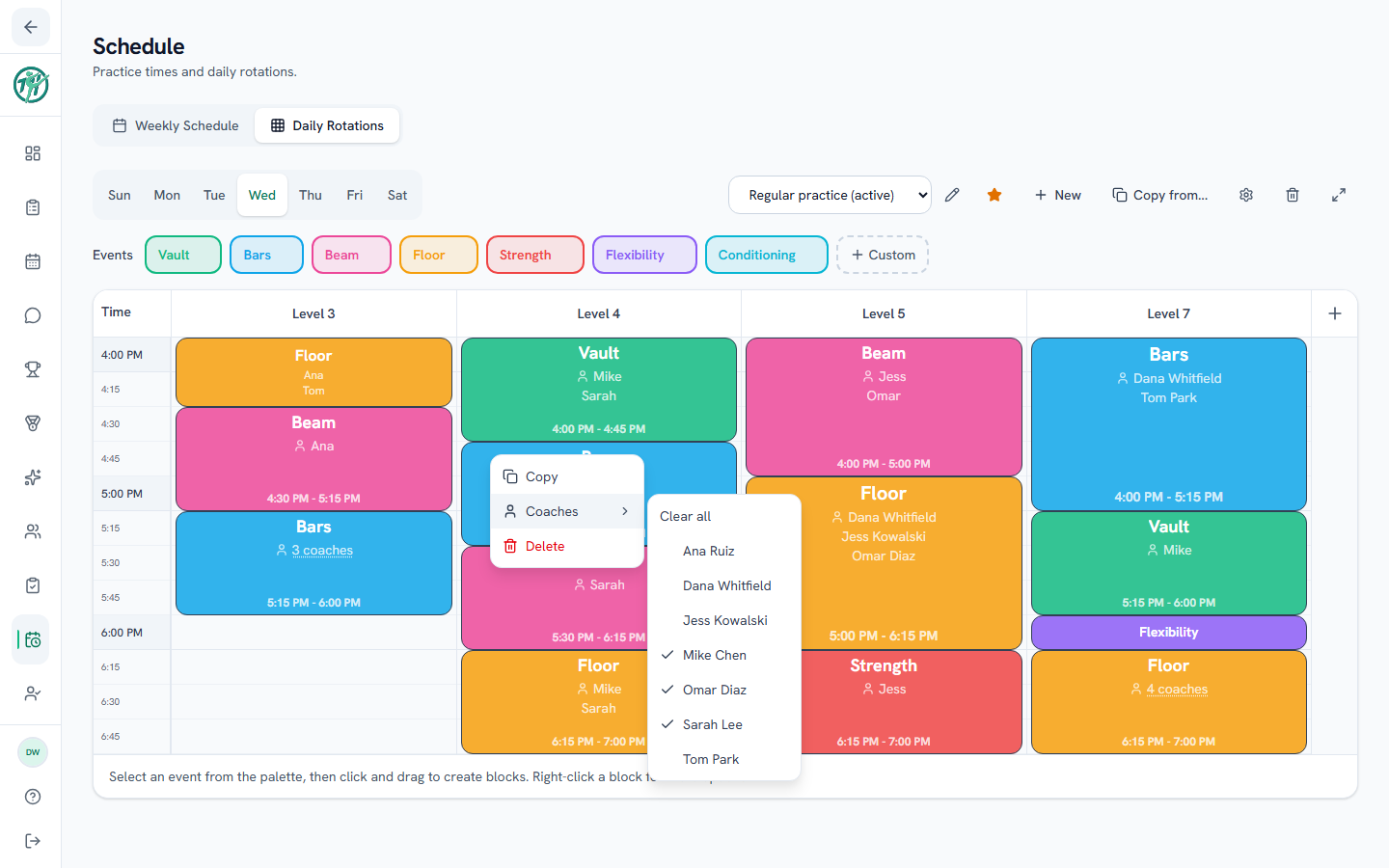
Rotations are built on the web with a mouse or trackpad: you click and drag to draw blocks, and right-click for a block's options. The phone app shows rotations but can't change them.
1. Pick the day and start a schedule
Open Schedule → Daily Rotations. It opens on today; pick another day from the day tabs.
On a day with nothing yet, click New Schedule. Next, click the gear to set the practice's Start Time, End Time and Grid Interval (5, 10, 15 or 20 minutes). A new schedule runs 3:00–8:00 PM in 10-minute steps until you change it.
2. Add a column for each group
For the first column, type a name in the No columns yet box, for example "Level 5", and click Add Column. After that, the + at the top-right of the grid adds more. Most gyms use one column per level or training group.
- Click a column's name to rename it.
- Drag a column's header to move it.
- Right-click a header to delete the column. If it has blocks, TeamHub says how many and asks first, because they go with it. An empty column is removed straight away.
Tip
Name columns after your levels exactly as they appear in your level list, like "Level 5" or "Level 5 Beam", not "L5". See the owners note at the end of this page for why.
3. Draw the blocks
- Pick an activity from the Events row above the grid. Every gym starts with Vault, Bars, Beam, Floor, Strength, Flexibility and Conditioning.
- Click an empty spot in a column and drag down to the time it ends. Let go, and the block is drawn.
- Keep drawing while the activity is selected. Click it again to deselect it.
To adjust a block:
- Move: drag it up or down, or into another column.
- Resize: drag its top or bottom edge.
- Delete: hover over it and click the × in its corner. It's deleted immediately. The shortest blocks have no ×, so right-click them and choose Delete.
Custom in the Events row adds your own activity, like Dance, Trampoline or Pit Work, in the color you choose. The pencil on an activity changes its name or color, or deletes it.
4. Right-click a block for more
- Copy: then click an empty spot to paste it there, with the same length and coaches. To back out, press Esc, right-click the grid, or click Cancel in the bar above it.
- Coaches: tick everyone coaching the block. Each tick saves as you go and the menu stays open, so you can tick several people in a row. Clear all removes everyone.
- Delete: removes the block.
A block lists its coaches by name when there's room between the activity and the time. When there isn't, it shows a count like 3 coaches. Click the count to see who. Taller blocks have room for more names, and the shortest blocks, one grid row tall, show only the activity.
The Coaches list shows your current staff. If someone who has left is still ticked on a block, they stay in that block's list so you can untick them.
More than one schedule on a day
A day can hold several rotation schedules, like a regular practice and a meet-week version. Use New to add another. You can start it blank or as a copy of one you already have that day.
The schedule menu at the top right switches between them. The star marks the one the gym is running: the day opens on the starred schedule for everyone, families included. To change it, pick another schedule and click its outline star. The first schedule on a day is starred automatically.
The pencil renames a schedule. The trash can deletes it, with all of its columns and blocks, after you confirm.
Reusing a day
- Copy from... replaces the schedule on screen with a copy of one from another day, coaches included. Build Monday, then copy it into Wednesday and adjust.
- Copy to hub... appears when you own more than one gym. It makes a one-time copy in the other gym, on the day you pick. Coaches don't carry over, because it's a different staff, and later changes don't sync.
Fullscreen for the gym floor
The expand icon at the far right fills the screen with the grid, with no editing tools. On a TV or a tablet on the wall, it works as a rotation board. Arrows flip between days, and Esc exits.
Coaches & staff
Owners, directors and coaches build and change rotations. Admins can view them but not change them.
The builder has its own short tour the first time you open Daily Rotations.
Owners & directors
If you set Schedule to Own for parents in Role permissions, families see only the columns whose name includes their gymnast's level. "Level 5" or "Level 5 Beam" shows to a Level 5 family. A column called "L5" matches no level, so no family sees it. The match is on whole words, so "Level 1" never picks up "Level 10". With the default setting, families see every column.
Common questions
How do I make one block for two groups?
Give each column its own block. Every block belongs to one column, so two groups sharing a floor get a block each. Copy one and paste it into the other column to save retyping.
Can I build rotations on my phone?
No. The app shows rotations for reading. Building needs the web, on a computer with a mouse or trackpad. See Reading rotations.
Last updated September 23, 2026
New to Gym TeamHub?
One organized hub for your whole gymnastics program — built by a coach.
Start Your Gym